
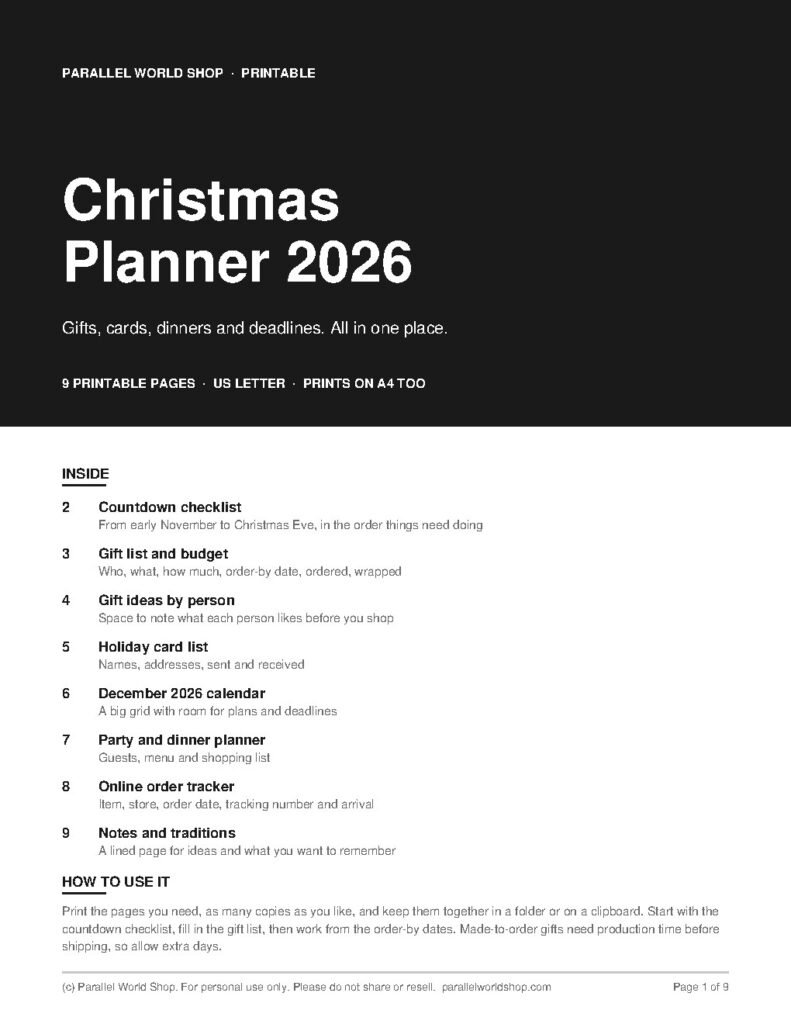
A printable planner only works if it prints well. Pages that come out cut off, tiny or washed out end up in a drawer, and that’s rarely the file’s fault. It’s almost always one setting in the print dialog.
This guide covers what to check before you press Print, whether you’re using a laptop, a phone or a library printer. The examples use our 9-page Christmas Planner 2026, but the same steps apply to any US Letter PDF, including our free printables.
Before you print: 3 quick checks
- Paper size. Our planner and free printables are US Letter, 8.5 x 11 inches. If you’re outside North America and your printer defaults to A4, you can still print them. Set the scale as described below and expect slightly wider margins.
- Open the file in a real PDF reader. Adobe Acrobat Reader is free and prints reliably. Browser viewers work too, but some add their own scaling.
- Look at page one on screen. The cover should fill the page with even margins. If it looks cropped on screen, the problem is the file. If it looks fine, any trimming happens at print time.

The settings that matter
1. Scale: Actual size or 100%
This is the setting that causes most problems. Many dialogs default to Fit or Shrink to printable area, which quietly makes everything 5 to 10 percent smaller. Choose Actual size or 100% instead. Text stays at the size it was designed, and the writing lines stay wide enough for a pen.
If the edge of a page gets cut off at 100%, your printer has a larger unprintable margin than most. In that case use Fit for that file only.
2. Color: Grayscale or black and white
The planner is a black-and-white design, so there’s nothing to gain from color. Choose grayscale. It uses only black ink, prints a little faster and saves your color cartridges.
3. Quality: Standard, not Draft
Draft mode is fine for the gift list you’ll scribble on, but it can make thin lines look broken. Use Standard or Normal for the cover, the calendar and any page you want to keep.
4. Sides: print single-sided
Each page is designed to stand on its own, so printing on one side lets you write on every page without ink showing through. If you’d like a double-sided binder, print single-sided first and see how the paper handles your pen.
5. Paper
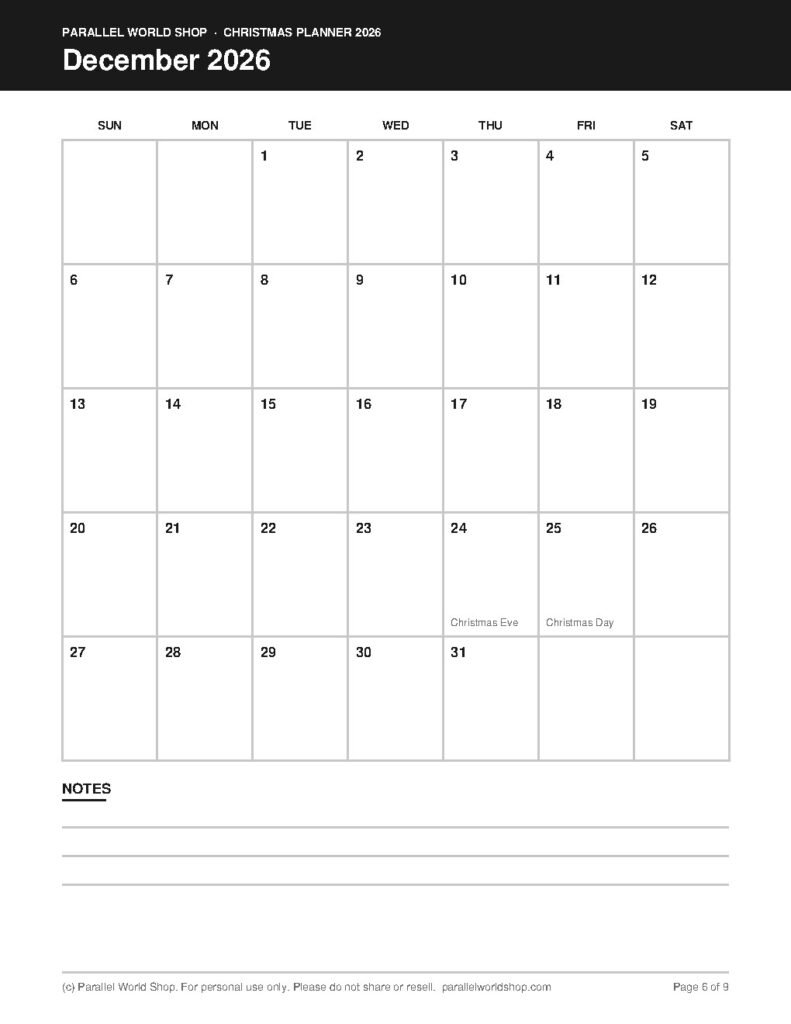
Standard 20 lb office paper is fine for a checklist. For pages you’ll write on all season, such as the gift list and the calendar, a slightly heavier paper in the 24 to 28 lb range feels better in the hand and handles gel pens well. You don’t need photo paper.

Printing from a phone or tablet
Download the file, open it in the Files app or your PDF reader, then use the share or print option. On iPhone and iPad, tap Share, then Print, and pinch the preview to open the page at full size. On Android, open the file in your PDF reader and choose Print from the menu. If your printer doesn’t appear, check that your phone is on the same wifi network.
Don’t have a printer? A library or local print shop can print a PDF from a USB stick or email. Ask for black and white on 24 lb paper, US Letter, single-sided.
Binding and storing the pages
- Binder. Use a three-hole punch and a slim 1-inch binder. You can add extra copies of the gift list or the online order tracker as you go.
- Folder with clips. If you’d rather not punch holes, a folder with a clip keeps everything together in a bag.
- The fridge. One-page printables, such as the free order-by calendar, are most useful where you see them every day.
What if I need more copies?
Print as many as you need for your own household. Our files are for personal use, so please don’t share or resell them. The planner PDF is set up for printing: it opens in any PDF reader and prints normally, but editing and copying text are locked. It’s designed to be filled in by hand.
Troubleshooting
- Text looks smaller than expected. The scale is on Fit. Switch to Actual size.
- Edges are cut off. Your printer can’t reach the page edge. Use Fit for this file or check the printer’s margin settings.
- Lines look faint or streaky. Switch from Draft to Standard and run the printer’s nozzle check or cleaning cycle.
- The PDF won’t open. Update your PDF reader, or try a different one. If it still fails, contact us and we’ll sort it out.
Ready to plan?
If you’re starting the holidays early, read our Christmas planning checklist for what to do each week, or grab the free gift budget tracker to try a printable before you buy one.